Adding New Products Via Global UPC (Global Pricebook)
Adding New Products Via Global UPC - Overview
FTx Cloud POS with its Global Pricebook - Product Download Feature streamlines new product creation by letting you enter a UPC and instantly retrieve matching details from the Global Database.
You can either quickly add the product using default global data with "Use Global Product Info” or select "View Global Details" to review and customize attributes like pricing, brand, or category, etc.
This feature reduces manual entry, ensures data accuracy, and speeds up the onboarding process.
This feature reduces manual entry, ensures data accuracy, and speeds up the onboarding process.
1. Reaching the “Products” Module
- Step 1: Log into Control Center
- Step 2: Select Point of Sale
- Step 3: Click on Pricebook
- Step 4: Choose Products
Please see Figure 1.1 to understand the navigation better.
Figure 1.1
2. Adding a New Product Using the Product Global UPC
To add a new Product Using Product Global UPC, click on the “Add New” button from the Products home screen.
Figure 2.1
- Now, you’ll be navigated to the Create Product page (Figure 2.2).
Figure 2.2
- In the UPC field, enter the manufacturer-provided UPC for the product you want to add.
Figure 2.3
- The system checks the Global Database, and if the UPC exists in the Global Database, a pop-up will appear stating: "UPC Found in the Global DB!"
Figure 2.4
You will be prompted to select one of the three options: “Use Global Product Info,” “View Global Details,” and “Cancel,” as shown in Figure 2.4. Choosing "Cancel” closes the dialog without importing. The other two are explained below. Choose the option that best fits your requirements.
2.1 Choosing the "Use Global Product Info" Option
- Click to select Use Product Global Info, which will instantly add the product using default data from the Global Database.
- You can then customize any attribute on the Create Product screen as needed (Figure 2.5).
Figure 2.5 - Once your edits are complete, click on “Save,” “Save & New,” or “Save & Close” to add the product to your store’s catalog.
2.2 Choosing the "View Product Global Details" Option
- If you choose the "View Product Global Details" option, it will open a detailed product screen.
- This screen will allow you to review each tab, as highlighted in Figure 2.6, by navigating through them.
Figure 2.6
- Then click on “Create Product” to complete the process.
- Clicking on “Create Product” opens the "Confirm Creation" dialogue box.
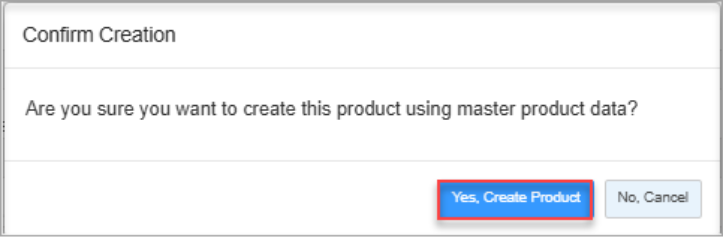
Figure 2.7
- Clicking on "Yes, Create Product" will generate the product entry, allowing you to customize its attributes as needed.
- Once created, the product will be added to your store’s catalog, which can be accessed:
Navigation: Control Center → Point of Sale → Pricebook → Products

Click here to understand the Global Pricebook Feature Functionality in Detail:
1) Navigating to Global Pricebook (KB article link)2) Manual Search (KB article link)3) Filtration (KB article link)4) Categories/Subcategories Search (KB article link)
5) CSV Upload - Apply UPC Filter (KB article link)