Lottery Game Bin Assignment Report - Store Employee
Lottery Game Bin Assignment Report Overview
The "Lottery Game Bin Assignment Report" shows store employees exactly which lottery games are placed in which bins at their location. It lists each bin number along with the assigned game, making it easy to confirm that everything is stocked in the right place.
This report helps with daily checks, troubleshooting, and keeping inventory organized so that no game is misplaced or missing.
Filters allow staff to view assignments by store, bin, or game for quick searching and verification.
1. Reaching the "Lottery Game Bin Assignment Report"
To reach the "Lottery Game Bin Assignment Report," follow the below steps:
- Step 1: Log into Control Center
- Step 2: Choose Location
- Step 3: Choose Reports
- Step 4: Choose Lottery Reports
- Step 5: Choose Lottery Game Bin Assignment
See Figure 1.1. You will see many types of lottery reports that will be useful to your retail business. By clicking the drop-down selection, you will see the different types of lottery reports.
Figure 1.1
2. Understanding the "Lottery Game Bin Assignment Report"
You will see the "Report Data is Empty" message initially. You need to select the filter options to check the "Lottery Game Bin Assignment Report." See Figure 2.1
Figure 2.1
3. Generating the "Lottery Game Bin Assignment Report"
When you navigate to the Lottery Game Bin Assignment Report page, you will see the options pre-selected by default. You can generate the report with different filters.
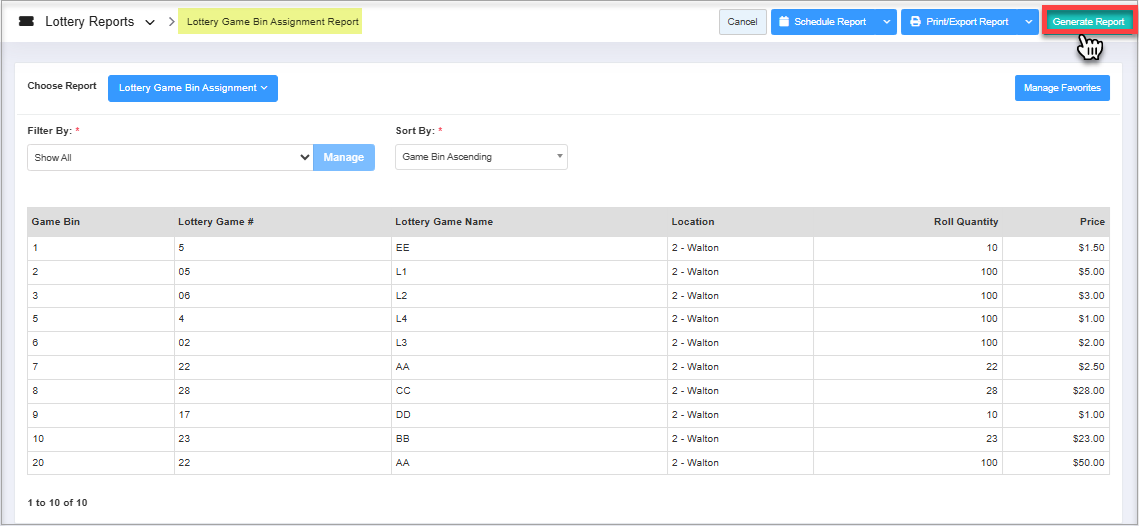
Figure 3.1
Fields:
- Game Bin: This column displays the game bin number assigned to the lottery roll.
- Lottery Game #: This is the lottery game number that you assigned when adding the ticket to the system.
- Lottery Game Name: This is the lottery game name that you assigned when adding the ticket to the system. Ideally, it should match the actual ticket name.
- Location: This column displays the store location name.
- Roll Quantity: Here, the number of tickets that are in the lottery ticket roll is displayed.
- Price: The selling price of one ticket is mentioned in this column.
3.1 Filter By:
This field has an attached drop-down menu consisting of two options:
- Show All: This option will display the data in the reports for all created discounts in the system. See Figure 3.1.1.
- Lottery: This option will display the list of lotteries on the Manage Filter page to select lotteries from. When the list is selected, the report will display data related to that list of lotteries.
Figure 3.1.2
Manage Filter Screen Information:
Manage Filter Screen Information:
1. Search: Use this search box for a specific result.2. Results: Here, you see the relevant list of data for the selected lottery. You can search for a specific lottery in the Search bar as well.
3. Checkboxes: Select the required products by checking the appropriate checkboxes.4. Arrow: Click the green Arrow button to move the selected records to the Selected List area as highlighted in
5. Click the "Clear Selection" button to remove the whole selection. To remove any record from the list, click the Remove (X) icon.
6. Apply/Close action buttons:
- Apply: Click the "Apply" button for the selected parameters. The system will navigate you to the Lottery Game Bin Assignment Report home screen. Click "Generate Report." The system will generate reports based on your selection.
- Close: Click to close the Manage Filters window.
4. Sort By
This field will let you sort the report in 8 different ways.
Figure 4.1
- Game Bin Ascending: If this sorting option is chosen, the Lottery Game Bin Assignment Report is sorted in ascending order of the game bin. It is selected by default.
Figure 4.2
- Game Bin Descending: If this sorting option is chosen, the Lottery Game Bin Assignment Report is sorted in descending order of the game bin.
Figure 4.3
- Lottery Game # Ascending: If this sorting option is chosen, the Lottery Game Bin Assignment Report is sorted in ascending order of the lottery game number.
Figure 4.4
- Lottery Game # Descending: If this sorting option is chosen, the Lottery Game Bin Assignment Report is sorted in descending order of the lottery game number.
Figure 4.5
- Game Name Ascending: If this sorting option is chosen, the Lottery Game Bin Assignment Report is sorted in ascending order of the lottery game name.
Figure 4.6
- Game Name Descending: If this sorting option is chosen, the Lottery Game Bin Assignment Report is sorted in descending order of the lottery game name.
Figure 4.7
- Price Ascending: If this sorting option is chosen, the Lottery Game Bin Assignment Report is sorted in ascending order of the lottery ticket price.
Figure 4.8
- Price Descending: If this sorting option is chosen, the Lottery Game Bin Assignment Report is sorted in descending order of the lottery ticket price.
Figure 4.9
5. Scheduling a Report
FTx Cloud POS supports report automation. You can configure a report and schedule it. The system will send the scheduled report to the indicated email addresses at the defined frequencies (daily, weekly, bi-weekly, monthly, quarterly, etc.).
6. Printing/Exporting a Report
You can print or export any report according to your requirements. When you use the Print function, the system creates and opens the report's PDF file in a new tab. You can download the soft copy or print the paper copy according to your requirements.
7. Manage Favorites
FTx Cloud POS allows quick access to the reports you need to view frequently through "Favorite Reports." You can save a report as a favorite and manage all your favorite reports from any of the report screens using the "Manage Favorites" button.