Lottery Reconciliation Summary Report - Store Employee
Lottery Reconciliation Summary Report Overview
The "Lottery Reconciliation Summary Report" provides a comprehensive overview of lottery activity across selected locations, based on the chosen filters and date range. It includes detailed information such as game names, starting and ending ticket numbers, and any variances identified during reconciliation.
This report plays a critical role in maintaining accurate financial records. By capturing data on ticket sales, inventory movement, and discrepancies, it supports the creation of precise financial reports.
These insights are essential for evaluating the financial performance of lottery sales, identifying profit and loss trends, and ensuring that all lottery revenue is properly tracked and accounted for.
1. Reaching the "Lottery Reconciliation Summary Report
To reach the Lottery Reconciliation Summary Report, follow the below steps:
- Step 1: Log into Control Center
- Step 2: Choose Location
- Step 3: Choose Reports
- Step 4: Choose Lottery Report
- Step 5: Choose Lottery Reconciliation Summary Report
See Figure 1.1 to understand the navigation better.
Figure 1.1
2. Understanding the "Location Reconciliation Summary Report" Layout
See Figure 2.1. You will see many types of lottery reports that will be useful to your retail business. By clicking the drop-down selection, you will see the different types of lottery reports.
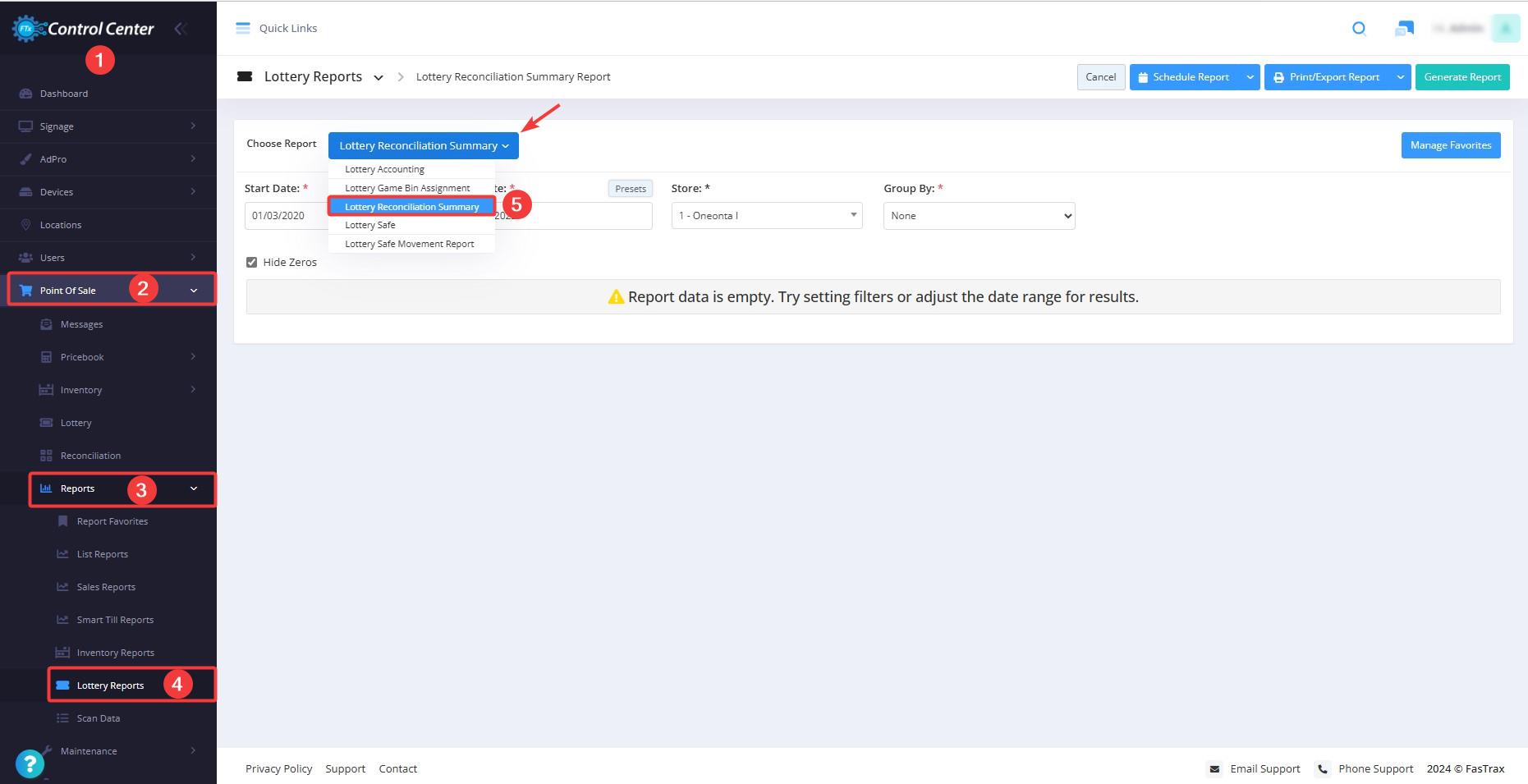
Figure 2.1
You will see the "Report Data is Empty" message initially. You need to select the date range to check the Lottery Reconciliation Summary Report in the report. See Figure 2.2.
Figure 2.2
3. Generating the "Lottery Reconciliation Summary Report"
When you navigate to the Lottery Reconciliation Summary Report page, you will see the options pre-selected by default. You can generate the report for the selected date range.
Figure 3.1
Report Data Information:
- Game #: This column will display the game number that is associated with the lottery ticket configured in the lottery game module. See Figure 3.2.
- Game Name: Here, the name of the game is mentioned in this column defined in the lottery game module. See Figure 2.2.
Figure 3.2
- Expected Start: This column displays the expected start number of the lottery ticket post-sales. Suppose the store you are in handles lottery tickets in ascending order, and the end # is 5; then the expected start would be 6.
- Diff: This column displays the difference (if any) between the end # and expected start.
- Start: The start value of the ticket would depend on whether your store handles the tickets in ascending or descending order. If the order is ascending, the start # would be 1, and if the order is descending, then the start # would be 100 (last to first, depending upon the total number of tickets in the bin).
- End: The end value of the ticket would depend on whether your store handles the tickets in ascending or descending order. If the order is ascending, the end # would be 100 (the last number of tickets depending upon the total number of tickets in the bin), and if the order is descending, then the end # would be 1.
- QOH: This column will display the number of tickets left at the store for the particular game # and game name.
- Total: This column displays the total number of tickets sold.
- Price: The selling price of one ticket is mentioned in this column.
- Total $: This column will display the total dollars as the number of tickets sold X price of one ticket. Here, the price of 1 ticket is $15.60, and if the total number of tickets is 2, then the Total $ value is $31.20.
- Reg Sales: This column displays the number of tickets sold that the system is keeping track of. For example, if the store is handling lottery tickets in ascending order and the value in end # is 6, then the register sales value would be 5 since that many tickets are sold.
- Reg Total: This column will display the Reg sales X price of one ticket. Here, if the price of 1 ticket is $3.00 and the Reg Sales value is 373, the Register Total value will be $1,119, As seen for Game # 12 in Figure 2.2 above.
- Variance: This column displays the variance between the end # and reg sales. If there is any discrepancy in the values, it is displayed here.
- Variance Total: The total price of the variance is mentioned under the variance total corner.
4. Date Range & Presets
You can filter your sales data in the report by selecting the date range as well as specific times.
By clicking the Edit box, you will be taken to a tiny calendar where you can select a specific date range. You can also manually enter the date in mm/dd/yyyy format.
Figure 4.1
- Start Date: This field lets you choose the start date for the date range.
Figure 4.2
- End Date: This field lets you choose the end date for the date range.
Figure 3.3
- Presets: The Presets label is provided to select the specific duration/interval to generate the report with that.
Figure 3.4
4. Store
To display the "Lottery Reconciliation Summary Report" for a specific location, select the store location from the associated Store field.
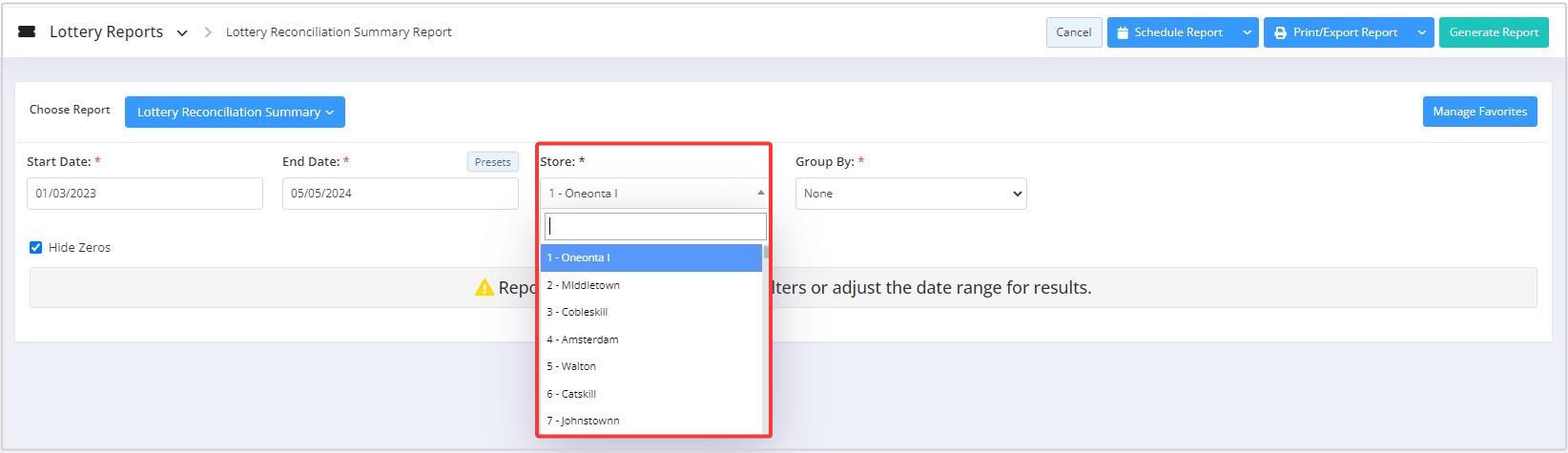
Figure 4.1
6. Scheduling a Report
FTx Cloud POS supports report automation. You can configure a report and schedule it. The system will send the scheduled report to the indicated email addresses at the defined frequencies (daily, weekly, bi-weekly, monthly, quarterly, etc.).
7. Printing/Exporting a Report
You can print or export any report according to your requirements. When you use the Print function, the system creates and opens the report's PDF file in a new tab. You can download the soft copy or print the paper copy according to your requirements.
8. Manage Favorites
FTx Cloud POS allows quick access to the reports you need to view frequently through "Favorite Reports." You can save a report as a favorite and manage all your favorite reports from any of the report screens using the "Manage Favorites" button.