Lottery Accounting Report - Store Employee
Lottery Accounting Report Overview
In the FTx Cloud POS system, the Lottery Accounting Report is a financial summary that helps track and reconcile lottery ticket sales, pay-outs, inventory, and cash flow related to lottery transactions within the store. The "Lottery Accounting Report" gives visibility into lottery sales performance.
This article includes information about:
- How to generate the "Lottery Accounting Report" for the selected date range
- How to apply filter options to customize the report
- How to automate (schedule) or print a report
- How to mark the report as a favorite report
1. Reaching the "Lottery Accounting Report"
- Step 1: Log into Control Center
- Step 2: Choose Location
- Step 3: Choose Reports
- Step 4: Choose Lottery Reports
- Step 5: Choose Lottery Accounting Report
Figure 1.1 below will help you better understand the navigation.
Figure 1.1
2. Understanding the "Lottery Accounting Report" Layout
See Figure 2.1.
You will see many types of lottery reports that will be useful to your retail business. By clicking the drop-down selection, you will see the different types of lottery reports.
Figure 2.1
3. Generating the "Lottery Accounting Report"
When you navigate to the "Lottery Accounting Report" page, you will see the current date selected by default. You can generate the report for the selected date range.
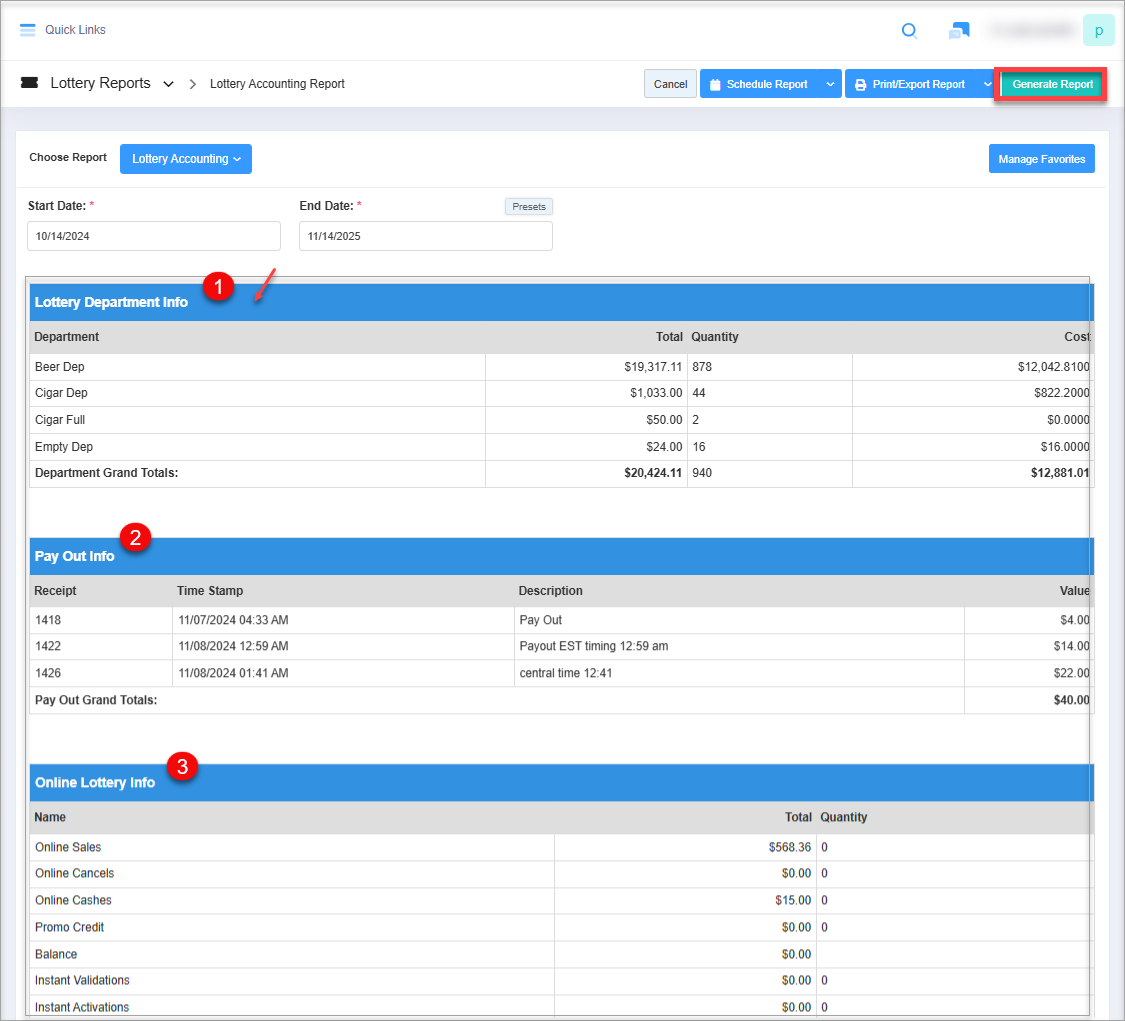
Figure 3.1
Figure 3.1
Report Information:
1. Lottery Department Info:
- Department Name: Lottery tickets are treated as regular store items and are assigned to a dedicated lottery department.
- Total: Displays the total retail value of all lottery tickets under this department.
- Quantity: Indicates the total number of lottery tickets available in the store.
- Cost: Shows the total purchase cost of the lottery tickets.
2. Pay Out Info:
- Receipt: Lists the receipt number associated with each lottery payout.
- Time Stamp: Records the date and time when the payout was made.
- Description: Provides a brief description of the payout transaction.
- Value: Displays the payout amount for the lottery transaction.
3. Online Lottery Info:
- Online Sales: Total amount and number of online lottery tickets sold. This gives you a clear picture of how much revenue was generated from online lottery sales.
- Online Cancels: Total value and count of canceled online lottery transactions.
 The total value and count of transactions where online tickets were canceled (voided or refunded). Canceled sales reduce your net revenue, so tracking this helps you reconcile totals and catch anomalies.
 - Online Cashes: The total amount paid out and the number of tickets cashed in by customers who won from online games. This represents money that leaves your till. It's essential for balancing your books and preventing fraud.
- Promo Credit: Value and count of promotional credits applied to online lottery purchases. These are not direct cash sales, so they don’t contribute to revenue but affect net accounting. Useful for marketing analysis, too.
- Balance: The net result after accounting for sales, cancellations, cash, and credit.
- Instant Validations: The count and value of physical instant-win (scratch-off) tickets validated through the POS system.
- Instant Activations: The total number and dollar value of new scratch-off (instant) ticket rolls activated for sale
- Net Sales/Credit: A final calculation showing your true net earnings after subtracting all non-revenue activities (like cancellations and credits) from gross sales.
4. Date Range & Presets
You can filter your sales data in the report by selecting the date range as well as specific times.
By clicking the edit box, you will be taken to a tiny calendar where you can select a specific date range. You can also manually enter the date in mm/dd/yyyy format.
Figure 4,1
- Start Date: This field lets you choose the start date for the date range.
Figure 4.2
- End Date: This field lets you choose the end date for the date range.
Figure 4.3
- Presets: The Presets label is provided to select the specific duration/interval to generate the report with that.
Figure 4.4
4. Scheduling a Report
FTx Cloud POS supports report automation, allowing you to configure and schedule a report. The system will then send the scheduled report to the designated email addresses at the specified frequency (daily, weekly, bi-weekly, monthly, quarterly, etc.).
5. Printing / Exporting a Report
You can print or export any report according to your requirements. When you use the Print function, the system creates and opens the report's PDF file in a new tab. You can download the soft copy or print the paper copy according to your requirements.
6. Manage Favorites
FTx Cloud POS provides quick access to frequently viewed reports through the "Favorite Reports" feature. You can save a report as a favorite and manage all your favorites from any report screen using the "Manage Favorites" button.